AION 2 PC Requirements and Graphics Performance Guide
Check the official AION 2 minimum and recommended PC specifications, then tune graphics settings with a measured performance checklist.
Updated: 2026-10-19 · Published: 2026-10-19
On this page
AION 2 is a Windows PC game for the global service. This page combines the current official requirements with a practical setup order, so you can separate a hardware limit from a launcher, network or graphics-setting problem before changing anything risky.
Official PC Requirements
The Steam listing checked on October 19, 2026 gives the following specification. Treat the store page as the final authority after a major client update.
| Component | Minimum | Recommended |
|---|---|---|
| Operating system | Windows 10/11 (64-bit) | Windows 10/11 (64-bit) |
| Processor | AMD Ryzen 5 2600 or Intel Core i5-10500 | AMD Ryzen 7 3700X or Intel Core i7-11700 |
| Memory | 8 GB RAM | 16 GB RAM |
| Graphics | NVIDIA GTX 1050 Ti (4GB) or AMD Radeon RX 470 (4GB) | NVIDIA RTX 2070 (8GB) or AMD Radeon RX 5700 XT (8GB) |
| DirectX | DirectX 12 | DirectX 12 |
| Network | Broadband internet connection | Broadband internet connection |
| Storage | 100 GB available | 100 GB available |
An SSD is recommended. For FHD, the official note pairs the minimum specification with the Very Low preset and the recommended specification with the Low preset. These are compatibility baselines, not promises of a fixed frame rate in every city, battle or crowded event.
Before You Install or Update
Reserve more than the listed 100 GB so the launcher has room to download, unpack and replace patch files. A drive that reaches its limit during patching can look like a network error even when the connection is working.
- Confirm that Windows is 64-bit and fully restarted after pending updates.
- Install the current stable graphics driver for your exact GPU model.
- Put the client on an SSD when possible and keep free working space on that drive.
- Download through Steam or PURPLE as described in the installation guide.
- Let the platform finish file verification before starting the game.
Avoid registry cleaners, repacked launchers and copied anti-cheat files. They make diagnosis harder and can introduce account or security risk.
A Stable First Graphics Setup
Start with the official preset that matches your hardware, then change one demanding option at a time. This makes it possible to identify the setting that actually causes a drop.
- Use FHD with Very Low first on minimum-class hardware.
- Use FHD with Low first on recommended-class hardware, then raise options gradually.
- Lower shadows, effects and view distance before reducing interface readability.
- Use a sensible frame-rate limit if the GPU runs at full load in menus or quiet areas.
- After changing resolution or display mode, test in a normal field and a busy combat area.
Keep a screenshot of the last stable settings page. If a later patch resets graphics options, you can restore a known baseline instead of guessing.
Stutter and Low-FPS Checklist
First determine whether the problem is constant or limited to loading, crowded hubs, large fights or the first minutes after a patch. Short asset-loading spikes and a permanently low frame rate have different causes.
- Close overlays, recording tools and browser tabs one at a time to find a real conflict.
- Check Task Manager for another process using the disk, CPU or memory.
- Verify that the game is using the dedicated GPU on systems with both integrated and discrete graphics.
- Return to the matching official preset and retest before changing advanced options.
- Verify client files if performance changed immediately after an interrupted update.
Do not copy a stranger's complete configuration folder over your own. Control and display files can include device-specific values. Use the controls and keybinds guide to record settings you want to preserve.
Crash and Launch Problems
This page is limited to hardware requirements, frame-rate stability and graphics tuning. If the client closes, fails to launch, shows a black screen or repeatedly crashes in the same instance, use the dedicated crash and performance troubleshooting guide. It separates server outages, client-file verification, driver and overlay conflicts, graphics baselines and official-support reporting without mixing them into the specification comparison.
Keep the exact error text, time and action that triggered the failure before changing settings. Do not disable security services permanently, download replacement DLL files or remove anti-cheat components from unofficial sources.
Recheck the official Steam requirements after major updates. Hardware tables can change; this guide records the values verified on October 19, 2026.
Official sources
- AION 2 on Steam - official system requirements(checked 2026-10-19)
Related guides
Getting StartedHow to Download AION 2 on PC: Steam and PURPLE
Use the official Steam or PURPLE download, choose the correct region, and complete a safe first-launch checklist for AION 2.
Read more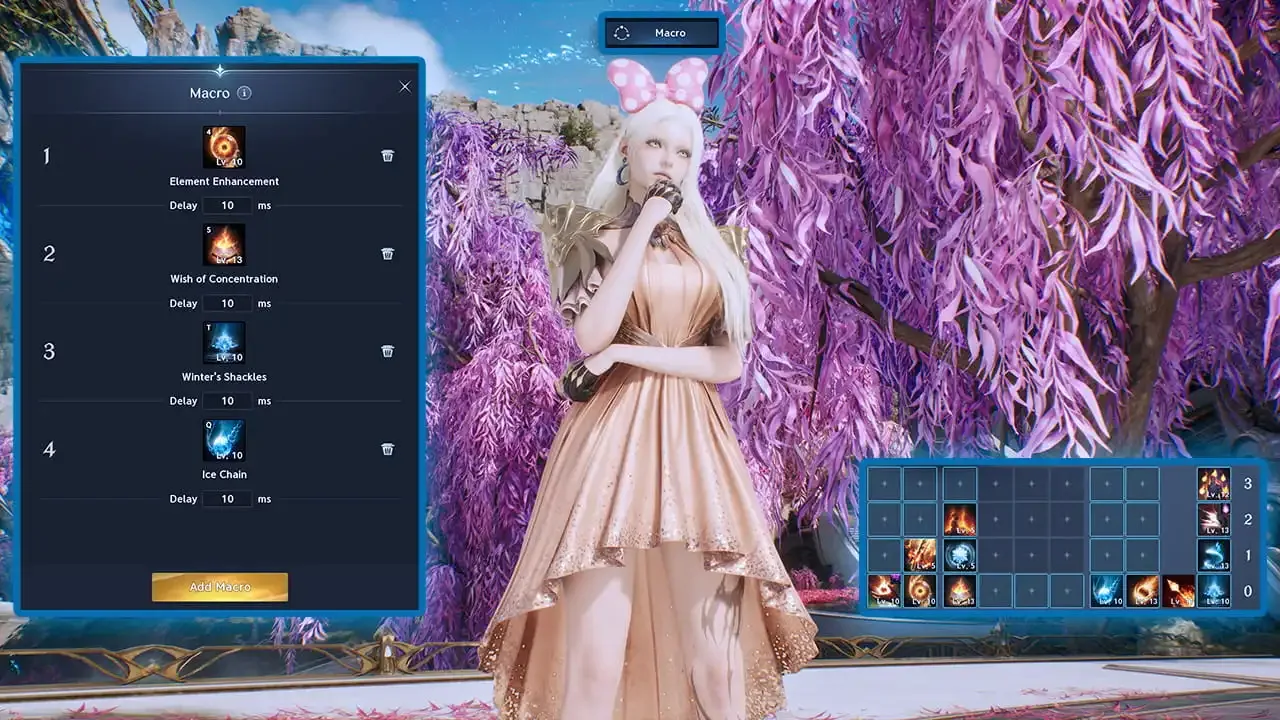 Systems
AION 2 Controls, Keybinds, HUD and Controller Setup
Build a practical AION 2 control layout for keyboard and mouse, organize the HUD, and check controller or Steam Input behavior safely.
Read more Servers
AION 2 Server Status and Maintenance Check Guide
Learn where to check official AION 2 maintenance notices and how to separate a service outage from launcher, login, server-selection or local network problems.
Read moreSystemsAION 2 Crash Fix and Performance Troubleshooting Guide
Diagnose AION 2 launch crashes, unstable graphics, overlay conflicts, driver problems, and repeated crashes in the same instance with a safe checklist.
Read more